BotOfTheSpecter Documentation
Everything you need to set up, configure, and get the most from your streaming bot.
First Time Setup Guide
Connect Twitch, mod the bot, and configure the essentials.
What is BotOfTheSpecter?
BotOfTheSpecter is a cloud-based Twitch chat bot that runs entirely on our servers. You don't need to install any software, run servers, or manage technical infrastructure. Just connect your Twitch account and start using the bot immediately!
Access the Dashboard
Go to the BotOfTheSpecter dashboard:
Or visit: https://dashboard.botofthespecter.com
Connect Your Twitch Account
- Click the Login with Twitch button on the dashboard
- You'll be redirected to Twitch's authorization page
- Review the permissions and click Authorize
- You'll be redirected back to the dashboard, now logged in
View full permissions list
- Delete chat messages in channels where you have the moderator role
- Read unban requests in channels where you have the moderator role
- Perform moderation actions in a channel
- Grant or remove the moderator role from users in your channel
- Edit your channel's broadcast configuration including extension activations
- Manage Channel Points custom rewards and their redemptions on your channel
- Manage your channel's broadcast configuration, including updating channel configuration and managing stream markers and stream tags
- Read your list of follows
- Send live Stream Chat and Rooms messages
- Read the list of VIPs in your channel
- Grant or remove the VIP role from users in your channel
- Get the details of your subscription to a channel
- Send announcements in channels where you have the moderator role
- Get a list of all users on your block list / Add and remove users from your block list
- Get your Twitch user ID, username, profile image, profile update date, email address, and email verification status
- Manage your channel's polls
- Read chat messages from suspicious users and see users flagged as suspicious in channels where you have the moderator role
- Read your channel's Hype Train data
- View Channel Points rewards and their redemptions on your channel
- Get a list of all subscribers to your channel and check if a user is subscribed to your channel
- Manage your channel's schedule, including adding, updating, and deleting segments
- Create clips from a broadcast or video
- Join your channel's chat as a bot user
- Read the list of channels you have moderator privileges in
- Read non-private blocked terms / chat settings / moderators / bans / deleted messages / warnings in channels where you have the moderator role
- Join chat as your user and appear as a bot
- Manage AutoMod in channels where you have the moderator role
- Read charity campaign details and user donations on your channel
- Read chat messages and appear in chat / write chat messages as your user
- View your channel's moderation data including Moderators, Bans, Timeouts and Automod settings
- Read the list of followers / chatters in channels where you are a moderator
- View your channel's Bits information
- Run ads and manage / read the ads schedule on your channel
- Ban or unban users / manage shoutouts in channels where you have the moderator role
Set Up Bot Permissions
The bot needs to be a moderator in your channel to function properly. There are two ways to do this:
Option 1 (Recommended): Use the dashboard button
When you're logged into the dashboard and the bot is not modded, you'll see this warning:
The bot is not a moderator on your channel. Please make the bot a moderator to start it.
Click the Make Mod button and follow the prompt.
Option 2: Add the role manually on Twitch
- Go to your Twitch Dashboard
- On the left panel, expand the Community menu
- Click Roles Manager
- Click Add New
- In the search bar, enter:
BotOfTheSpecter - Select the bot user and check the Moderator permission
- Optional: Also check the Editor role to enable VOD video access
- Delete inappropriate messages
- Timeout or ban users when necessary
- Respond to commands in chat
- Manage channel point redemptions
Editor role benefits: Allows the bot to access VODs and video content for video-related commands.
Configure the Dashboard
Now that the bot has moderator permissions, continue configuration in the dashboard:
- If you used Option 1 (Make Mod) in Step 3, you're already in the right place.
- If you used Option 2 (manual Twitch Roles Manager), return to the dashboard and refresh or log out and back in so permissions update.
Basic Settings
- Bot Status: After the bot is modded, the dashboard detects it automatically. Click START to run the bot and wait for the status to update.
- Channel Information: Set up your preferences on the Profile page:
- Technical/advanced options toggle
- Dashboard language (English, French, or German)
- Your Time Zone and Weather Location
- HypeRate.io integration for heart rate display in chat
- External connections for Discord, Spotify, and StreamElements
- Command Prefix: Commands use
!— this cannot be changed.
BotOfTheSpecter is designed with control in mind — you run the bot, you stop the bot. If you no longer wish to use it, simply click STOP. It's that simple.
"I built Specter so I'm not running 4 different chat bots on my own stream, now I just run one, that's Specter." — Developer
Moderation Settings
Configure moderation on the Modules page:
- Joke Blacklist: Set up joke categories to blacklist from the
!jokecommand - Chat Protection: Enable/disable URL blocking in chat
- When enabled, you can whitelist specific links to allow them
- When disabled, you can still blacklist links that will always be removed from chat
Set Up Bot Points
Bot Points are your built-in loyalty system. Viewers earn points as they chat and interact, and you can tune how rewards are given. This feature is enabled by default.
- Point Name: Choose a custom name for your points (e.g. Coins, Tokens, Credits)
- Earning Rates: Configure how many points users earn for:
- Each chat message sent
- Following your channel
- Subscribing to your channel
- Each cheered message
- Each viewer in a raid
- Subscriber Multipliers: Add bonus multipliers for subscribers (e.g. 2x points)
- CREDIT (adds points):
https://api.botofthespecter.com/user-points/credit?api_key=1234&username=test&amount=1 - DEBIT (removes points):
https://api.botofthespecter.com/user-points/debit?api_key=1234&username=test&amount=1&allow_negative=false
API Docs: credit_user_points | debit_user_points
Customize Your Bot
Custom Commands
Custom commands are one of the quickest ways to make your bot feel like part of your community. Start with simple commands like !discord, !youtube, !instagram, and !business.
Create them on the Custom Commands page.
- Community links: Discord, social accounts, merch, and support links
- Channel info: Stream schedule, PC specs, and FAQs
- Utility commands: Rules reminder, business email, event announcements
Auto Messages
Auto messages keep important information visible without needing a moderator to post manually. Create them on the Timed Messages page.
- Welcome and rules: Friendly reminders about chat rules and stream expectations
- Useful links: Discord invite, social links, donation links, and command list
- Stream engagement: Follow reminder, schedule updates, and community events
- After a set time interval
- After a certain number of chat messages (line triggers)
- After a certain number of chat messages combined with a time delay
Troubleshooting
- Check that the bot is turned on in the dashboard
- Verify the bot is added as a moderator
- Try refreshing the dashboard and re-starting the bot
- Check the bot status indicator — ONLINE/OFFLINE
- Ensure you're using the correct prefix — the bot uses
! - Check if the command is enabled in settings
- Verify the user has permission to use it
- Some commands require premium features
- Try logging out and back in
- Clear your browser cache and cookies
- All modern browsers are supported
- Check if Twitch is experiencing issues at status.twitch.tv
- Ensure the bot is a moderator in your channel
- Only the broadcaster can start and stop the bot — the moderator dashboard does not have this capability
- Some features require VIP or subscriber status — check the user has the appropriate role
Setup Complete!
Next Steps:
- Explore the dashboard to discover all available features
- Customize commands and settings to match your stream style
- Check out the documentation for advanced features
- Join our Discord for community support and tips
Premium Features
Some advanced features require a premium subscription:
- AI Chat: Have conversations with an AI in your chat
- Advanced Music: Use
!songwithout connecting Spotify - Shared Bot Name (BotOfTheSpecter): The default shared bot username used across the platform
- Custom Bot Name (Experimental/Coming Soon): Use your own bot username instead of BotOfTheSpecter
Support the developer on Twitch to unlock these features!
Need Help?
If you encounter issues during setup, don't hesitate to reach out:
Main Features
Chat tools, games, events, tracking, and third-party integrations.
Chat Protection & Custom Commands
Link Protection
URL blocking is disabled by default. You must enable it before the bot will remove links posted by non-moderators. Moderators & Broadcasters are always exempt.
- When enabled, any viewer who posts a link will have their message deleted.
- Use
!permit @usernameto give a viewer a 30-second window to post one link. - Toggle URL blocking from Integrations → Specter Modules → Chat Protection in the dashboard.
- Add trusted domains to the Link Whitelist so they always bypass URL blocking, without needing a permit.
Blocked Terms Beta
Separately from link blocking, you can keep a list of forbidden words. Any message containing a blocked term is deleted automatically. Configure it under Integrations → Specter Modules → Chat Protection in the dashboard.
Custom Commands
Create unlimited custom commands from the dashboard or directly in chat.
!addcommand !name response— creates a new command.!editcommand !name new response— updates an existing command.!removecommand !name— deletes a command.- Give a command a permission level by quoting the response:
!addcommand !name "response text" mod(levels: everyone, mod, vip, subscribers, broadcaster). Beta
Responses support the full variables system — including (user), (count), (customapi.URL), math expressions, and more.
Commands can also have aliases — extra trigger words that redirect to the same command and share its cooldown. Beta
Timed Messages
Schedule messages to post automatically at a set interval. Manage them under Commands → Timed Messages.
- Set the interval in minutes and a minimum chat-line threshold so messages only fire when chat is active.
- Multiple timed messages can run simultaneously.
- Supports the same dynamic variables as custom commands.
Bot Modes
| Mode | Description |
|---|---|
| Standard | The main BotOfTheSpecter account joins your channel. |
| Custom Bot | Use your own Twitch bot account — the bot acts with your bot's identity. |
| Self Mode | The broadcaster's own account is used as the bot. |
Games & Fun
Points-Based Games
These games consume or award bot points. The points system must be enabled in Settings → Bot Points.
| Command | Description |
|---|---|
!gamble <type> [choice] [amount] |
Wagers bot points (defaults to 100 if omitted). Types: coinflip (50% to win double), blackjack (random 1-21, only 21 wins double), roulette (choose red/black for double or lose).Examples: !gamble coinflip 100 | !gamble roulette red 100Beta On the beta bot, the broadcaster can wager any amount without needing enough points first. |
!slots |
Spins a slot machine with a 70% chance to win. Symbols have values: 🍒=10, 🍋=15, 🍊=20, 🍉=25, 🍇=30, 🍓=35, ⭐=50. Winning spins pay out triple the matched symbol's value; losing spins (the other 30%) deduct the combined value of the three symbols shown (points never drop below zero). |
!roulette |
Russian roulette — survive or get shot. If shot, deducts 100 points as hospital penalty. No chat timeout applied. |
Social & Party Commands
| Command | Description |
|---|---|
!rps <rock|paper|scissors> | Play rock-paper-scissors against the bot. Announces win/tie/lose with no points exchanged. |
!story <5 words> | AI generates a short story (3-5 sentences) seeded from your five words. Example: !story dragon castle brave knight magic |
!joke | Fetches a random joke with category filtering based on your blacklist settings. |
!kill @user | Playfully "kills" a viewer or yourself with randomized messages from external API templates. |
!hug @user | Sends a virtual hug, increments hug counter, and announces the updated total. Self-targeting blocked; hugging the bot returns the hug to you. |
!highfive @user | High-fives a viewer, increments counter, and announces the total. Self-targeting blocked. |
!kiss @user | Sends a kiss, increments kiss counter, and announces the total. Self-targeting blocked. |
!puzzles | Reports the number of Tanggle puzzles completed by the channel. |
Raffle System Beta
| Command | Who | Description |
|---|---|---|
!createraffle <name> <prize> <winners> [weighted] | Moderator | Creates a scheduled raffle with specified name, prize, and number of winners. Optional weighted mode applies multipliers based on subscriber tier or VIP status. |
!startraffle [raffle_id] | Moderator | Starts a scheduled raffle. If no ID specified, starts the oldest scheduled raffle. |
!joinraffle | Viewer | Enters the active raffle. Respects settings for subscriber-only, follower-only, and moderator exclusions. Weighted raffles apply multipliers automatically. |
!leaveraffle | Viewer | Removes the viewer from the current raffle. |
!stopraffle | Moderator | Ends the running raffle without drawing winners. |
!drawraffle [raffle_id] | Moderator | Performs weighted random selection to pick winners, announces results in chat, and triggers overlay alerts. |
Lotto System
A Channel Points-based lotto system where viewers redeem Channel Point rewards to get their lotto numbers. Winning numbers are automatically generated when the stream goes live, and moderators draw prizes across multiple divisions, awarding Bot Points to the winners.
Setup
- Create a Channel Point reward on Twitch for lotto entry.
- In the Specter dashboard, sync your Channel Point rewards.
- Edit the lotto reward and add
(lotto)to the custom message — this generates the viewer's lotto numbers. - Viewers redeem the reward to receive their numbers and enter the draw.
Commands
!startlotto(Moderator) — manually generates the winning numbers (they are also generated automatically when the stream goes live).!drawlotto(Moderator) — compares entries to winning numbers and awards Bot Points by division: Division 1 (100,000), Division 2 (50,000), Division 3 (10,000), Division 4 (5,000), Division 5 (1,000), Division 6 (500).
(lotto) variable in Channel Point reward messages automatically generates and displays the viewer's lotto numbers when they redeem the reward.
Events & Alerts
BotOfTheSpecter reacts to Twitch events automatically. All response messages are customisable from Settings → Alerts in the dashboard and support the variables system.
| Event | What happens |
|---|---|
| New Follow | Posts a customisable thank-you message and triggers an overlay alert. |
| Subscription | Posts a sub message. Supports (tier) and (months) variables. |
| Re-subscription | Handles resub messages with streak and total month data. |
| Gift Subscriptions | Single and bulk gifts supported. Supports (count) and (total-gifted). Pay-it-forward gifts also support (gifter) Beta. |
| Sub Gift Pay-It-Forward & Upgrades Beta | Extra chat alerts when a viewer pays a gifted sub forward, or upgrades a gifted or Prime sub to a paid subscription. |
| Bits / Cheer | Thanks the viewer. Supports (bits) and (total-bits). |
| Charity Donation | Thanks the donor in chat for a donation to the channel's active Twitch charity campaign. |
| Raid | Welcomes the raider, triggers an automatic Twitch shoutout. Supports (viewers). |
| Channel Points Redemption | Executes a custom response per reward — supports TTS, lotto, fortune, and API calls. VIP grants are also supported Beta. |
| Hype Train | Announces the start and end of the Hype Train. Supports (level). |
| Channel Goal Beta | Broadcasts overlay updates when a channel goal begins, progresses, and ends. |
| Ad Break | Sends an upcoming ad warning, activates an AI chat companion during the break, then resumes normal mode. |
| Poll | Announces when a poll starts (with a countdown) and posts a message when it ends. |
| Shoutout Received | Announces when another streamer gives the channel a Twitch shoutout. |
| Stream Online / Offline | Starts/stops timed messages, watch-time tracking, and logs stream session data. |
| Chat Join / Welcome | Welcomes returning and new viewers by name (bots are ignored automatically). |
Overlay Alerts
Events are forwarded to the WebSocket server and displayed through OBS browser source overlays at:https://overlay.botofthespecter.com/alert.php?code=YOUR_API_KEY
| Alert Type | Description |
|---|---|
| Sound Alerts | Custom audio clips triggered by chat commands or Channel Points. |
| Walk-ons | Personalised audio/video that plays when a specific viewer joins chat. |
| Text-to-Speech (TTS) | AI voice reads viewer messages aloud through the OBS browser source. |
| Video Alerts | Custom video clips triggered by events or commands. |
Tracking & Stats
Bot Points
A built-in loyalty point system earned by chatting and participating in the stream, with bonus points for new follows, subscriptions, cheers, and raids. Configure the name, earn rate, and icon under Settings → Bot Points.
!points— check your balance.!addpoints/!removepoints— moderator manual adjustment.- Spent playing
!gamble,!slots, and!roulette. !store/!store <item>— browse or redeem rewards from the point store. Beta
Watch Time
Tracks total viewing time per viewer across all streams. Viewers check their own with !watchtime.
Lurk Tracking
!lurk— starts tracking and announces the viewer is lurking.!unlurk— ends tracking and announces the viewer is back.!lurking— shows how long the user has been lurking this session.!lurklead— shows who has the most accumulated all-time lurk time.!userslurking— shows how many viewers are currently lurking.
Death Counter
Tracks in-game deaths for the current session.
!deaths— shows the count (anyone).!deathadd/!death+— adds to the counter (moderator).!deathremove/!death-— removes from the counter (moderator).
Typo Counter
!typo @user— records a typo for a user (moderator).!typos [@user]— shows the typo count.!edittypos @user <n>— sets the count to a specific number (moderator).!removetypos @user— decrements or resets (moderator).
Quotes
!quote [number]— shows a random quote or one by number.!quoteadd <text>— saves a new quote (moderator).!removequote <number>— deletes a quote (moderator).
Bits Tracking
!mybits— shows the user's total all-time bits cheered in the channel.!cheerleader— shows the all-time top bit cheerer.
Follow Age
!followage [@user] queries the Twitch API to show exactly how long a viewer has been following the channel.
Working & Study
A productivity overlay for co-working streams.
!task <name>— sets your active task on the overlay.!done [n]— finishes your active task (or multiple backlog items like!done 2; 4; 5) and awards points.!later <name>/!soon <name>— queues tasks into your backlog.!backlog— views your pending tasks.!personaltimer <minutes> <label>— starts a personal focus timer (also supports cycles like50/10/4).!project <name>— organises your tasks into specific projects.!tasktimer— broadcaster/mod controls for the main overlay timer (e.g.!tasktimer auto on).!taskhelp— outputs a summary of these commands in chat.
Subathon Timer
A countdown timer that extends with subs and bits (cheers) to drive engagement during subathon events. Check remaining time with !subathon status. Configure time additions per sub tier from the dashboard.
Integrations
BotOfTheSpecter connects to a wide range of third-party services to enhance your stream. All integrations are configured from Integrations in the dashboard.
| Service | What the bot does |
|---|---|
| Spotify | Displays the current track (!song), accepts viewer song requests via Spotify links, search terms, or YouTube links auto-matched to Spotify (!sr), skips tracks (!skipsong), and shows the queue (!songqueue). |
| Shazam | Identifies the currently playing song by audio fingerprinting when Spotify has no track data — a premium failover for !song (monthly request limit resets on the 23rd). |
| Steam | Looks up Steam games by name via the Steam API — shows store descriptions, prices, and app IDs (!steam). |
| OBS WebSocket | Controls OBS scenes and sources directly from chat via the !obs moderator command. |
| HypeRate | Connects via WebSocket to show the streamer's live BPM in chat with !heartrate. |
| StreamElements | Receives tip and merch alert events in real time via Socket.IO and forwards them to overlays. |
| StreamLabs | Receives donation and alert events and broadcasts them to the WebSocket overlay server. |
| Ko-fi | Receives donation, subscription, and shop-order webhooks, announces them in chat, and forwards them to overlays. |
| Patreon | Receives new-pledge and membership webhooks, announces them in chat, and forwards them to overlays. |
| Fourthwall | Receives order, donation, giveaway, and subscription webhooks, announces them in chat, and forwards them to overlays. |
| OpenAI (GPT) | Powers AI responses in the home channel, generates AI stories (!story), and runs an AI chat companion during ad breaks with persistent chat history. |
| OpenWeatherMap | Fetches live weather for any location via !weather <city>. |
| Pronouns (alejo.io) | Looks up and caches viewer-set pronouns, using them naturally when the bot mentions a viewer by name. |
| Discord | A companion Discord bot handles stream announcements, reaction roles, support tickets, voice music playback, and Twitch account linking. |
| Text-to-Speech (TTS) | Converts viewer messages to speech using AI voices (Alloy, Ash, Ballad, Coral, Echo, Fable, Nova, Onyx, Sage, Shimmer) through an OBS browser source overlay. |
| Unit & Currency Conversion | Powered by the Pint unit library for length, weight, temperature, volume, speed, and more — plus live currency exchange rates via the ExchangeRate API — all through !convert (e.g. !convert 10 km mi or !convert $10 USD AUD). |
Setting Up Your Own Spotify Application
Create a personal Spotify Developer app and link it to BotOfTheSpecter.
We apologise for the inconvenience. Due to Spotify's updated Developer Policy, our platform Spotify client is no longer able to accept new users — Development Mode apps are now capped at 5 authorized users. If you were previously linked via our platform account and need to reconnect, your slot is still reserved. For new users, you will need to create your own Spotify app to use Spotify integration — it takes only a few minutes and will be solely used for your channel. Note: your Spotify developer account must have Spotify Premium to use Development Mode.
On the beta bot,
!song, !songrequest (!sr), and !skipsong (!skip) fall back to the built-in YouTube media queue when no Spotify account is linked, so song requests still work without completing this setup. Linking Spotify (via the platform app or your own, below) upgrades these commands to search and control real Spotify playback.
Create a Spotify Developer Account
- Go to the Spotify Developer Dashboard.
- Log in with your Spotify account (or create one if you don't have it).
- Accept the terms and conditions.
Create Your Spotify Application
- Click on Create app.
- Fill in the application details:
- App name:
Specter-[Your Username](e.g.,Specter-JohnDoe) - App description: Twitch bot integration for Spotify
- Website:
https://dashboard.botofthespecter.com - Redirect URI:
https://dashboard.botofthespecter.com/spotifylink.php
- App name:
- Check the box for Web API under "Which API/SDKs are you planning to use?"
- Check the agreement boxes and click Save.
Get Your App Credentials
- In your app dashboard, you'll see your Client ID displayed.
- Copy the Client ID (a 32-character string).
- Click View client secret to reveal and copy the Client Secret.
Configure BotOfTheSpecter
- Go to your Spotify Link page.
- Check the Enable Own Client box.
- Enter your Client ID and Client Secret in the fields that appear.
- Click Save Credentials.
- Click the Link Spotify Account button to authorize with your new app.
Troubleshooting Common Issues
-
Redirect URI mismatch: Ensure the Redirect URI in your Spotify app matches exactly:
https://dashboard.botofthespecter.com/spotifylink.php -
Permissions: The required scopes (
user-read-playback-state,user-modify-playback-state,user-read-currently-playing) are automatically requested during authorization. - Rate limits: Spotify has rate limits — if you exceed them, wait a moment before trying again.
- Authorization fails: Double-check that your Client ID and Client Secret are correct and that the Redirect URI matches exactly.
Text-to-Speech (TTS) Module
Read chat and Channel Point messages aloud through your OBS overlay.
What is TTS & How to Set It Up
The Text-to-Speech (TTS) module allows BotOfTheSpecter to read messages aloud in your stream. You can customize which voice is used, and the TTS will play through your audio overlay. This is perfect for announcements, alerts, and enhancing viewer engagement.
Setting Up TTS
- Navigate to the TTS Settings section in the BotOfTheSpecter dashboard.
- Choose your preferred voice from the available options (see the Available Voices section below).
- Set up your audio overlay to hear TTS output — see the OBS Audio Monitoring guide.
- Test your setup with a sample message.
Using TTS with Channel Points
TTS is triggered through Twitch Channel Points redemptions. Viewers can redeem a Channel Point reward to have a message read aloud using the voice you've selected in TTS settings.
Using TTS with the Point Store Beta
On the beta bot, viewers can also trigger TTS by buying a TTS item from your Point Store, spending their bot loyalty points instead of Twitch Channel Points. Their message is read aloud with the same voice configured in your TTS settings.
Available Voices
Click the play button next to each voice to hear a sample:
Clear, crisp, and professional
Warm and friendly
Melodic and expressive
Energetic and bright
Deep and resonant
Storyteller voice
Fast-paced and dynamic
Smooth and sophisticated
Thoughtful and calm
Gentle and uplifting
Troubleshooting TTS
- No audio output: Verify that your audio overlay is correctly configured in OBS and that audio monitoring is enabled. See the OBS Audio Monitoring guide.
- Wrong voice playing: Check that you've saved the correct voice in TTS settings on the dashboard.
- Audio too quiet or too loud: Adjust the volume slider on the audio overlay source in OBS.
- TTS not responding: Ensure the TTS module is enabled on the dashboard and the bot has proper channel permissions.
OBS Audio Monitoring Setup
Hear overlay alerts, TTS, and walk-ons through OBS during your stream.
Why Audio Monitoring?
Audio monitoring lets you hear audio from your overlays — sound alerts, TTS, and walk-ons — directly through OBS, ensuring they play correctly during your stream.
https://overlay.botofthespecter.com/alert.php?code=YOUR_API_KEY
Part 1: Configure OBS Audio Settings
Open OBS Studio
Launch OBS on your computer.
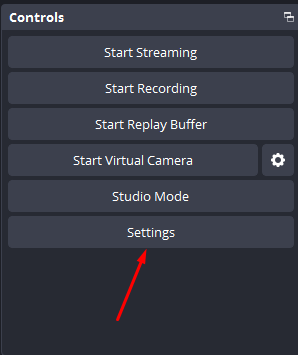
Go to Settings
Click the Settings button in the bottom-right corner of the OBS window.
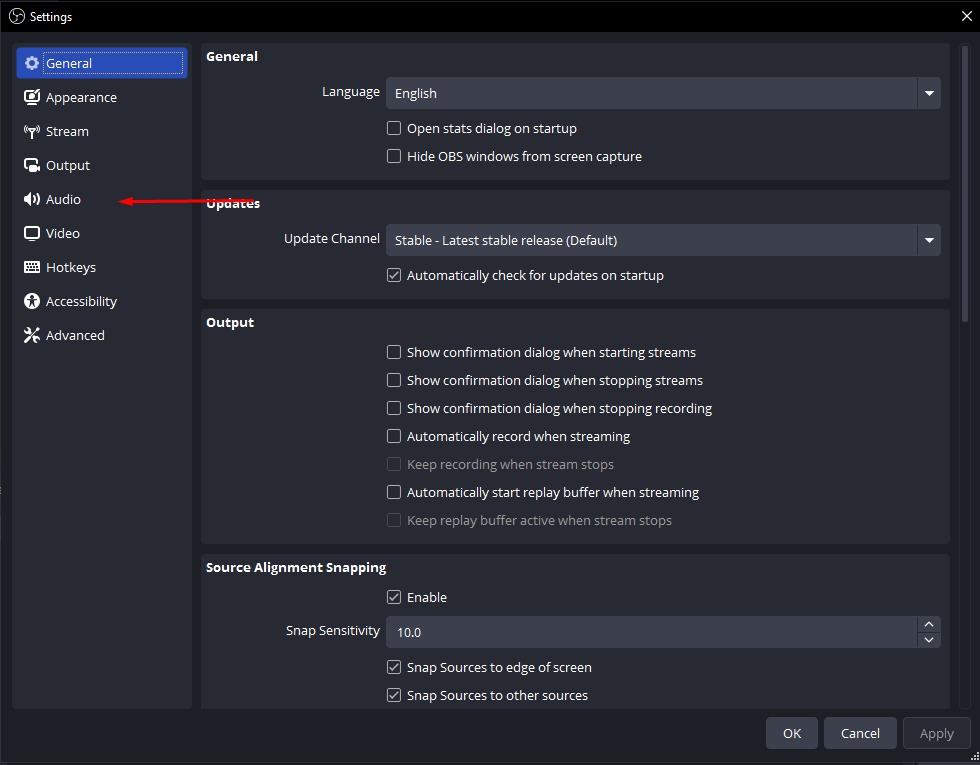
Select the Audio Tab
In the Settings window, click the Audio tab.
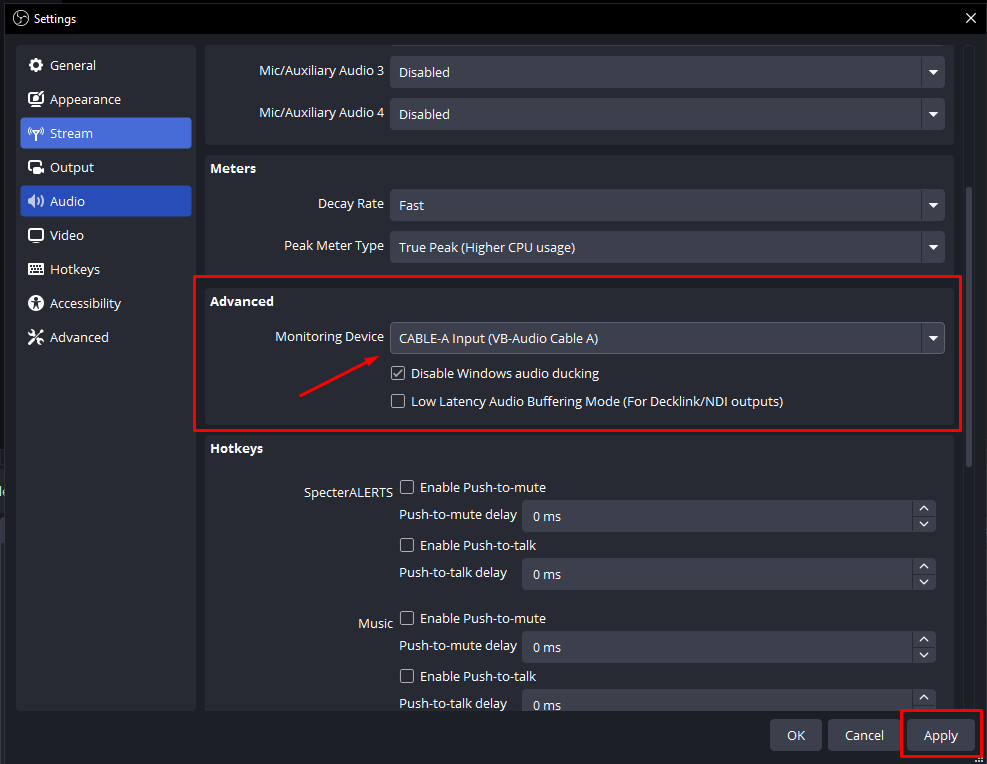
Configure Monitoring Device
Under Monitoring Device, select your desired audio output (e.g., headphones or speakers). Choose Default or your primary device.
Part 2: Add the Overlay Browser Source
Add a Browser Source
- In the Sources panel, click + and select Browser.
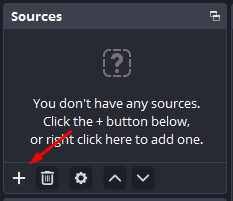
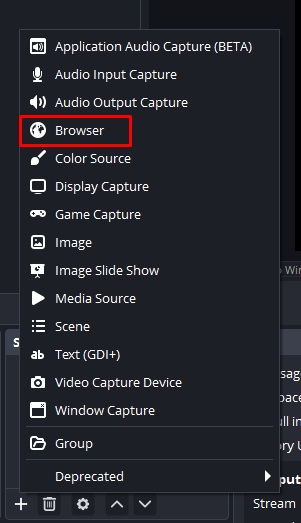
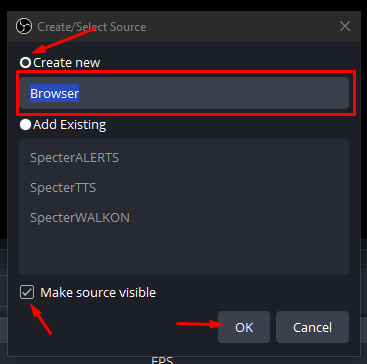
- Select Create new and give it a name (e.g., Specter Overlay). Ensure Make source visible is checked and click OK.
- In the Properties window, paste your overlay URL into the URL field:
https://overlay.botofthespecter.com/alert.php?code=YOUR_API_KEY
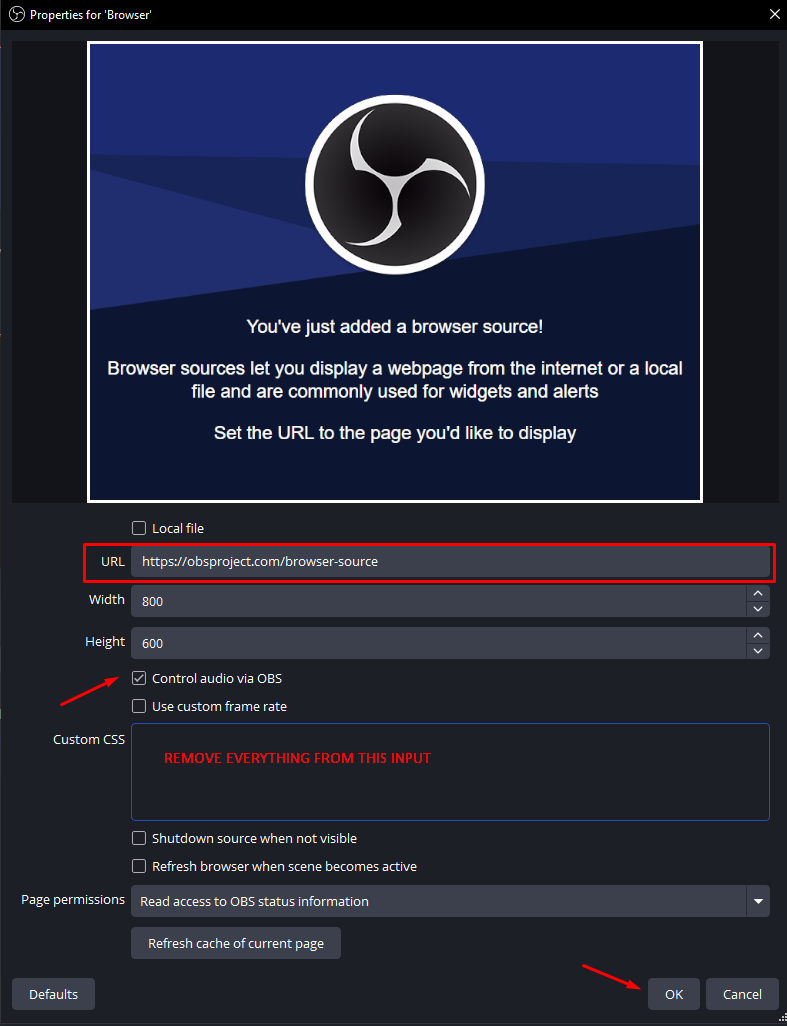
- Check Control audio via OBS, clear any text in Custom CSS, then click OK.
Configure Audio Monitoring for the Browser Source
- The browser source will appear in the Audio Mixer at the bottom of OBS.
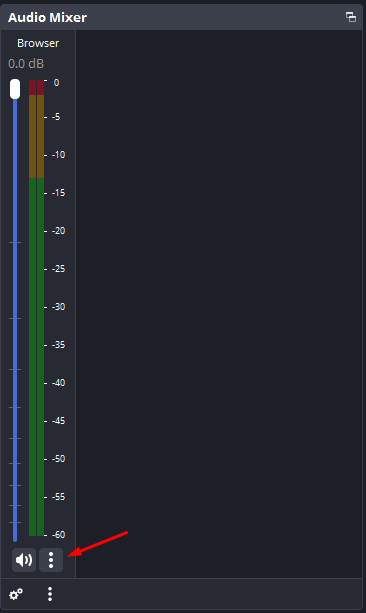
- Click the ⋯ (three dots) next to the speaker icon for the browser source.
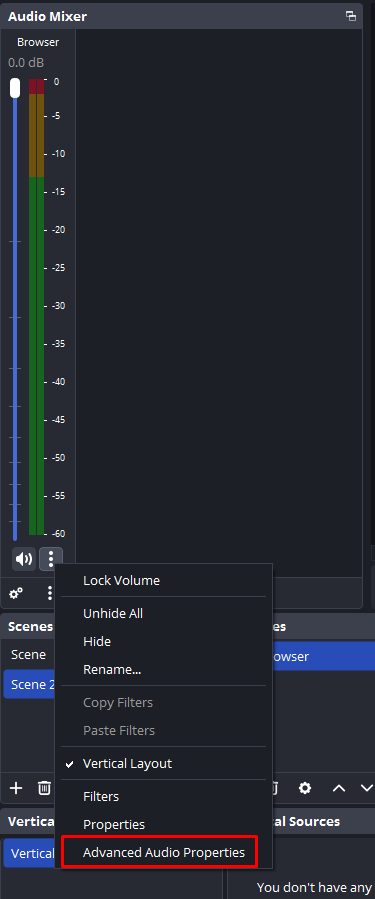
- Click Advanced Audio Properties.
- Set the Audio Monitoring dropdown to Monitor and Output.
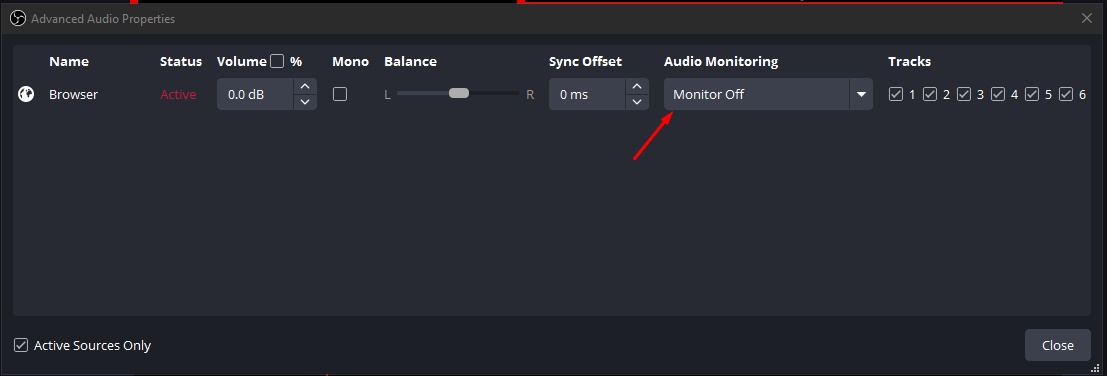

- Click Close. Your overlay audio is now configured.
Troubleshooting
https://overlay.botofthespecter.com/alert.php?code=YOUR_API_KEYVariables
Dynamic tokens for custom commands, timed messages, channel point rewards, and event alerts.
Universal Variables
These work in every message type — custom commands, channel point rewards, and event alerts. Timed messages are the exception: on the live bot only (game) is currently replaced in timed messages; full variable support in timed messages is a Beta feature.
(count)Increments and displays the number of times this command has been used.
Example: This command has been used (count) times!
In chat: This command has been used 42 times!
(usercount)Displays how many times this specific user has used this command.
Example: (user) has used this command (usercount) times!
In chat: streamername has used this command 15 times!
(user) / (author)(user) displays the username of the person who triggered the command, or the @mentioned user if one was provided. (author) always refers to the person who typed the command, regardless of any @mention.
Example: Hey (user), welcome to the stream! (author) says hi!
In chat: Hey @someone, welcome to the stream! streamername says hi!
(game)Displays the current game/category being streamed.
Example: We're currently playing (game)!
In chat: We're currently playing Just Chatting!
(daysuntil.DATE)Calculates the number of days until a specific date. Format: YYYY-MM-DD. Automatically rolls over to the next year if the date has already passed.
Example: Only (daysuntil.2026-12-25) days until Christmas!
In chat: Only 42 days until Christmas!
(timeuntil.DATE) / (timeuntil.DATE-HH-MM)Calculates the time remaining until a specific date or date and time. Use YYYY-MM-DD for date-only, or YYYY-MM-DD-HH-MM to include a specific time.
Examples:
(timeuntil.2026-12-25)
(timeuntil.2026-06-15-18-00)
In chat: The event starts in 42 days, 12 hours, and 30 minutes!
(math.expression)Evaluates a simple math expression left-to-right. Supports +, -, *, / — operators apply strictly in the order they appear (no standard order of operations), and parentheses are not supported.
Example: 2 + 2 = (math.2+2)
In chat: 2 + 2 = 4
(random.percent)Generates a random percentage between 0% and 100%. Use (random.percent.X-Y) for a custom range.
Examples:
(user) is (random.percent) cool today!
Your luck today is (random.percent.50-100)!
In chat: streamername is 73% cool today!
(random.number)Generates a random number between 0 and 100. Use (random.number.X-Y) for a custom range.
Examples:
Your roll: (random.number)
You dealt (random.number.1-20) damage!
In chat: You dealt 14 damage!
(random.pick.item1.item2.item3)Randomly selects one option from a dot-separated inline list.
Example: (user) should play (random.pick.Minecraft.Fortnite.Valorant) next!
In chat: streamername should play Minecraft next!
(command.name)References another custom command and sends its response as an additional message.
Example: Here's some info: (command.socials)
In chat: Response from the socials command
(customapi.URL)Fetches a URL and inserts the plain text response. On the live bot, (customapi.json.URL) fetches JSON and inserts it as raw text just like a normal request. Beta: (customapi.json.URL) instead runs silently (nothing is printed) and stores the JSON in temporary context for use with the Beta (json.*) variable.
Examples:
(customapi.https://api.example.com/joke) — raw response
(customapi.json.https://api.example.com/data) — raw JSON text on the live bot; silent Beta context on beta
(customapi.https://yourapi.com/user.php?user=(user)) — with variable in URL
(call.commandname)Calls and executes a built-in bot command by name.
Example: (call.shoutout)
In chat: Output from the built-in shoutout command
Beta: pass an argument with (call.commandname.argument) to forward input to the called command.
(if.CONDITION|TRUE|FALSE) BetaEvaluates a condition and returns one of two values. All other variables are resolved first. Supported operators: = != < > <= >= contains startswith endswith
Examples:
(if.(arg) = start|The timer has started!|Say start to begin)
(if.(user) = gfaundead|Welcome boss!|Hello (user)!)
(arg) BetaThe argument the user passed after the command name. Empty string if no argument was given.
Example: (author) gives (arg) a big hug!
In chat (user types !hug @someone): streamername gives @someone a big hug!
(pronouns) BetaDisplays the user's full pronoun set, fetched from pronouns.alejo.io. Defaults to they/them if not set.
Use (pronouns.they) for just the subject pronoun (e.g. she, he, they) and (pronouns.them) for just the object pronoun (e.g. her, him, them).
Example: (user) and (pronouns) are here! We hope (pronouns.they) enjoy the stream! Give (pronouns.them) a warm welcome!
In chat: streamername and she/her are here! We hope she enjoy the stream! Give her a warm welcome!
(random.pick) BetaPicks a random item from the pre-configured options list stored in the database for that command. No inline items needed.
Example: Today's winner is (random.pick)!
In chat: Today's winner is Option2!
(random.pick.list.commandname) BetaPicks a random item from the options list stored for a different named command. Useful for sharing a single list across multiple commands or rewards.
Example: The chosen game is (random.pick.list.gamelist)!
In chat: The chosen game is Minecraft!
(count.name) BetaA named counter shared across commands. Increments by 1 each time it's used (user input never changes the amount), and the same name can be referenced from any command.
Example: We've died (count.deaths) times!
In chat: We've died 7 times!
(clearcount.name) BetaResets a named counter (see (count.name)) back to 0. Outputs nothing itself.
Example: Deaths reset! (clearcount.deaths)
In chat: Deaths reset!
(shoutout.username) BetaTriggers a shoutout for a specific named user (not whoever ran the command). The shoutout is sent as a separate follow-up message. Unlike the event-only (shoutout), this works in any message type.
Example: Go check out (shoutout.someone)!
In chat: Go check out! (followed by the shoutout for someone)
(json.path.to.value) BetaPulls a value out of the JSON fetched by (customapi.json.URL), using a dot path. Fetch the JSON first (it's silent), then reference fields with (json.key) or (json.nested.key).
Example: (customapi.json.https://api.example.com/user)(user)'s title is (json.data.title)
(todo.add.category.[description]) BetaSilently adds an item to your to-do list under a category. Outputs nothing in chat. CATEGORY must be the numeric ID of one of your to-do categories (from the To-Do List page) — a non-numeric value silently falls back to your first category. Format: (todo.add.CATEGORY.[the item text]).
Example: Noted! (todo.add.2.[fix the overlay flicker])
In chat: Noted!
Channel Point Reward Variables
(count), (user), (author), (game), (random.*), (math.*), (customapi.*), (json.*), (if.*), (daysuntil.*), (timeuntil.*), (pronouns), (command.*), (call.*), and (arg) — also work in channel point reward messages.
(message) BetaThe text input the user provided when redeeming the reward.
Example: (user) says: (message)
In chat: streamername says: hello world
(usercount)Displays how many times this specific user has redeemed this reward. Uses a separate counter from the command version of (usercount).
Example: (user) has redeemed this reward (usercount) times!
In chat: streamername has redeemed this reward 5 times!
(userstreak)The current consecutive redemption streak for this user. Resets to 1 when a different user redeems the reward.
Example: (user) is on a (userstreak) streak!
In chat: streamername is on a 3 streak!
(track)Silently increments the reward's usage counter. Does not display anything in chat.
Example: Thanks for redeeming! (track)
In chat: Thanks for redeeming!
(tts)Triggers text-to-speech using the user's input text. Does not display anything in chat itself.
Example: (user) triggered TTS! (tts)
In chat: streamername triggered TTS! (user's input is sent to TTS)
(tts.message)After all variables are processed, sends the final composed message to both chat and text-to-speech simultaneously.
Example: (user) says: (message) (tts.message)
In chat: streamername says: hello world (also sent to TTS)
(lotto)Generates a set of lottery numbers for the redeeming user.
Example: (user), your lucky numbers are: (lotto)
In chat: streamername, your lucky numbers are: 7, 14, 22, 35, 42
(fortune)Fetches a random fortune for the redeeming user. It does not include their name automatically — combine it with (user) if you want the fortune addressed to them.
Example: (user), (fortune)
In chat: streamername, you will find great success today
(vip) BetaGrants the redeeming user VIP status via the Twitch API. Does not output any text itself.
Example: Congrats (user), you are now a VIP! (vip)
In chat: Congrats streamername, you are now a VIP!
(vip.today) BetaSame as (vip), but also records the user so that VIP status is automatically removed when the stream ends.
Example: (user) is VIP for today's stream! (vip.today)
In chat: streamername is VIP for today's stream!
(redeem.input) BetaThe text the viewer typed when redeeming the reward (the same value as (message)).
Example: (user) requested: (redeem.input)
(redeem.title) BetaThe title of the redeemed reward.
Example: (user) redeemed "(redeem.title)"!
(redeem.cost) BetaThe channel-point cost of the redeemed reward.
Example: That cost you (redeem.cost) points!
(redeem.prompt) BetaThe reward's prompt / description text.
Example: Reward info: (redeem.prompt)
(redeem.id) BetaThe unique ID of this redemption. Handy for logging or custom API calls.
Example: (customapi.https://yourapi.com/log?id=(redeem.id))
(redeem.status) BetaThe redemption's status (e.g. fulfilled, unfulfilled).
Example: Status: (redeem.status)
(redeem.redeemed_at) BetaThe timestamp when the reward was redeemed.
Example: Redeemed at (redeem.redeemed_at)
(storeredeem) BetaRecords this redemption into your stored redeems list — used for Point Store fulfillment tracking. Outputs nothing in chat.
Example: Order received! (storeredeem)
Event Alert Variables
Event-specific tokens for welcome messages, ad notices, and Twitch chat alerts (followers, subs, raids, bits, hype trains). Every Universal Variable above also works here — the event-specific tokens below are available in addition to them, because all alert messages run through the same variable-processing engine as custom commands.
Example:
Thank you (user) for (bits) bits! You've given a total of (total-bits) bits to the channel!In chat:
Thank you BotOfTheSpecter for 100 bits! You've given a total of 5,000 bits to the channel!
General Variables (available across multiple event modules)
(user)In an alert, (user) resolves to whoever triggered the event — the follower, subscriber, raider, gifter, or cheerer.
Example: Thank you (user) for following!
In chat: Thank you BotOfTheSpecter for following!
(shoutout) BetaTriggers a shoutout for the user. The shoutout info is sent as a separate message after your alert.
Example: Welcome (user)! (shoutout)
In chat:
Welcome BotOfTheSpecter!
Check out their channel at twitch.tv/BotOfTheSpecter - They were last playing Software and Game Development!
(pronouns) (plus (pronouns.they) / (pronouns.them)), (arg), and (if.*) also work in alerts — they're documented once under Universal Variables above.
No unique variables — all General Variables above (including (shoutout), (pronouns), (pronouns.they), (pronouns.them)) are available in welcome messages.
(minutes)Shows how many minutes until an upcoming ad break starts. Used in the upcoming ad notification message.
Example: Heads up! An ad break is coming up in (minutes) minutes!
In chat: Heads up! An ad break is coming up in 5 minutes!
(duration)Shows the length of the ad break, formatted as a human-readable string.
Example: Ad break will last (duration).
In chat: Ad break will last 1 minute 30 seconds.
Follower Alert
(user)Example:
Thank you (user) for following!(shoutout), (pronouns), (pronouns.they), and (pronouns.them) — see General Variables above.Bits & Cheers
(user)(bits)Example:
Thank you for (bits) bits!(total-bits)Example:
You've given (total-bits) bits total!(shoutout), (pronouns), (pronouns.they), and (pronouns.them) — see General Variables above.Raid
(user)(viewers)Example:
(user) raided with (viewers) viewers!(shoutout), (pronouns), (pronouns.they), and (pronouns.them) — see General Variables above.Hype Train
(level)Example:
Hype train is at level (level)!Standard Subscriptions
(user)(tier)Example:
You are now a (tier) subscriber!(months)Example:
Subscribed for (months) months!(shoutout), (pronouns), (pronouns.they), and (pronouns.them) — see General Variables above.Gift Subscriptions
(user)Anonymous if the gift was sent anonymously.(tier)Example:
Thank you (user) for gifting a (tier) subscription!(count)Example:
Gifted (count) subscriptions!(total-gifted)Example:
You've gifted (total-gifted) subs total!(gifter) BetaExample:
Thank you (user) for paying it forward! They received a gift from (gifter).Subscription Upgrade Beta
(user) BetaExample:
Thank you (user) for upgrading to a paid subscription!(tier) BetaExample:
Thank you for upgrading to a (tier) subscription!Watch Streak Beta
(user) BetaExample:
Congrats (user) on watching (value) consecutive streams!(value) Beta(total) BetaExample:
They've watched a total of (total) streams.Twitch Channel Points
Sync rewards and automate redemption responses with BotOfTheSpecter.
What are Twitch Channel Points?
Twitch Channel Points are a loyalty system that allows streamers to reward their viewers for watching, following, subscribing, and participating in the stream. Viewers earn points over time and can redeem them for various rewards that you create.
BotOfTheSpecter integrates seamlessly with Twitch's Channel Points system, allowing you to automate responses and create custom experiences when viewers redeem rewards.
Setting Up & Syncing Rewards
- Go to your Twitch Dashboard.
- Navigate to the Channel Points section.
- Create custom rewards with titles, costs, and descriptions.
- Enable the rewards you want to use (Affiliate/Partner required).
- Use BotOfTheSpecter to sync and customize responses.
To use Channel Points with BotOfTheSpecter, sync your rewards from Twitch. This updates reward IDs, titles, and costs so the bot can recognise redemptions and trigger your configured actions.
- Log into your BotOfTheSpecter dashboard.
- Go to the Channel Rewards page.
- Click the Sync Rewards button.
- Wait for the sync to complete.
- Your rewards will appear in the table.
Customizing Reward Responses
Once your rewards are synced, you can customize the bot's response for each redemption. This allows you to create personalized experiences for your viewers.
How to Customize
- Find the reward in the Channel Rewards table.
- Click the Edit button next to the reward.
- Enter your custom message in the text area (up to 255 characters).
- Click Save to apply the changes.
Message Variables
You can use the following variables in your custom reward messages. For the full shared-variable list, see the Variables guide.
(user)(usercount)(userstreak)(track)(tts)(tts.message)(lotto)(fortune)(vip) Beta(vip.today) Beta(customapi.URL)(customapi.json.URL) + (json.*) Beta(fortune), (lotto), and (tts) are variable-based triggers. You can place them in any reward message instead of relying on a specific reward title.
Best Practices
- Set appropriate point costs based on value
- Use clear, descriptive titles
- Include cooldowns for high-value rewards
- Limit redemptions per stream/user if needed
- Announce rewards during stream
- Create themed reward sets
- Rotate rewards to keep things fresh
- Monitor redemption patterns
- Keep custom messages fun and engaging
- Use variables to personalise responses
- Use the Manage option to convert rewards to Specter-managed when needed
- Map rewards to sounds/videos for overlay alerts if needed
- Test rewards before going live
- Regularly sync rewards from Twitch
Troubleshooting
Ensure you've saved the custom message and that the bot has mod permissions on your channel.
If you use (customapi.json...), make sure your (json.path.to.value) matches the API response structure.
Check the bot's logs for errors and report them on GitHub or Discord.
Custom API Documentation
Programmatic access for integrations, overlays, and external tools.
API Overview & Authentication
The BotOfTheSpecter API enables programmatic access to various bot features, allowing developers to build custom integrations, extensions, and applications that interact with the bot's functionality.
All authenticated API requests require your unique API key. This key is essential for BotOfTheSpecter integrations, including API access, WebSocket server connections, and third-party platform integrations.
/v2/ endpoints support sending your key in the X-API-KEY request header. This is the recommended approach for better security. Legacy endpoints still support ?api_key=YOUR_API_KEY where applicable.Full v2 docs: https://api.botofthespecter.com/v2/docs
Obtaining Your API Key
- Log in to the BotOfTheSpecter Dashboard.
- Navigate to Dashboard → Profile.
- Locate your API key in the API Access section of the Profile page.
API Key Regeneration
If you believe your API key has been compromised:
- Go to Dashboard → Profile.
- Click the regenerate button in the API Key section.
- Important: Regenerating your key requires a full restart of all BotOfTheSpecter components (Twitch Chat Bot & Overlays). Restart them via the dashboard after regenerating.
Endpoint Quick Reference
BotOfTheSpecter's API provides several endpoint groups. Some are public; others require a user API key or admin key. For /v2/ endpoints, prefer the X-API-KEY header.
Endpoint Reference: Public & Commands
Public (no authentication required)
GET /freestuff/games— Get recent free gamesGET /freestuff/latest— Get the most recent free gameGET /versions— Get the current bot versionsGET /commands/info— Get builtin commands informationGET /heartbeat/websocket— Get the heartbeat status of the websocket serverGET /heartbeat/api— Get the heartbeat status of the API serverGET /heartbeat/database— Get the heartbeat status of the database serverGET /system/uptime— Get API process uptimeGET /chat-instructions— Get AI chat instructionsGET /api/song— Get the remaining song requestsGET /api/exchangerate— Get the remaining exchangerate requestsGET /api/weather— Get the remaining weather API requestsGET /api/steamapplist— Get Steam app list mapping
Webhooks (require API key)
POST /fourthwall— Receive and process FOURTHWALL Webhook RequestsPOST /kofi— Receive and process KOFI Webhook RequestsPOST /patreon— Receive and process Patreon Webhook Requests
Commands (requires user API key)
Admins can query any user's data with the channel parameter.
GET /v2/quotes— Get a random quoteGET /v2/fortune— Get a random fortuneGET /v2/kill— Retrieve the Kill Command ResponsesGET /v2/joke— Get a random jokeGET /v2/sound-alerts— Get list of sound alerts for userGET /v2/custom-commands— Get list of custom commands for your accountGET /v2/user-commands/get— Get list of user managed commandsPOST /v2/user-commands/add— Add a user managed commandPOST /v2/user-commands/remove— Remove a user managed commandGET /v2/weather— Get weather data and trigger WebSocket weather eventGET /v2/user-points— Get user pointsPOST /v2/user-points/credit— Credit points to a userPOST /v2/user-points/debit— Debit points from a user
User Account (requires user API key)
Admins can query any user's data with the channel parameter.
GET /v2/account— Get account informationGET /v2/checkkey— Check if the API key is validGET /v2/streamonline— Check if the stream is onlinePOST /v2/discord/twitch-link/confirm— Confirm Discord to Twitch link using one-time tokenGET /v2/bot/status— Get chat bot status
WebSocket Triggers (requires user API key)
Endpoints that trigger real-time events via WebSocket to the bot and overlays.
GET /v2/websocket/tts— Trigger TTS via APIGET /v2/websocket/walkon— Trigger Walkon via APIGET /v2/websocket/deaths— Trigger Deaths via APIGET /v2/websocket/sound_alert— Trigger Sound Alert via APIGET /v2/websocket/custom_command— Trigger Custom Command via APIGET /v2/websocket/stream_online— Trigger Stream Online via APIGET /v2/websocket/raffle_winner— Trigger Raffle Winner via APIGET /v2/websocket/stream_offline— Trigger Stream Offline via APIPOST /v2/SEND_OBS_EVENT— Pass OBS events to the websocket server
Admin Only (requires admin API key)
Administrative endpoints that require admin API key. Service-specific admin keys are restricted to their designated service.
POST /freestuff— Receive and process FreeStuff Webhook RequestsPOST /github— Receive and process GitHub Webhook RequestsGET /v2/authorizedusers— Get a list of authorized users for full beta access to the entire Specter EcosystemGET /v2/discord/linked— Check if Discord user is linkedGET /v2/discord/twitch-link— Get Discord to Twitch linkPOST /v2/discord/twitch-link/request— Create one-time Twitch link token for a Discord userPOST /v2/discord/twitch-link/unlink— Unlink Discord user from Twitch account
Using the API
For /v2/ endpoints, send your API key in the X-API-KEY header. Legacy endpoints can still use a URL query parameter where supported.
Do not expose the key in public client-side code — treat it like a secret and rotate it if you suspect compromise.
X-API-KEY: YOUR_API_KEY
curl -H "X-API-KEY: YOUR_API_KEY" "https://api.botofthespecter.com/v2/account"Replace YOUR_API_KEY with the key from your dashboard. For /v2/ routes, always send it via the X-API-KEY header and avoid passing keys in URLs.
Run BotOfTheSpecter Yourself
Self-host SpecterSystems on your own Linux servers.
What is Self-Hosting?
To run the source code of BotOfTheSpecter on your own set of servers and not use our hosted system, you'll have complete freedom to host it yourself with more control over your data. BotOfTheSpecter runs on a full headless Linux server architecture.
Running SpecterSystems yourself requires technical knowledge of server administration, Python, PHP, and Linux. This is recommended for experienced developers and system administrators only.
If you're interested in running BotOfTheSpecter on your own servers, please be aware that the self-hosting documentation may not always reflect the latest changes. Self-hosting is recommended for experienced developers who are comfortable troubleshooting issues independently. While we're happy to help with our hosted service, our support team focuses primarily on the cloud-hosted version and may not be able to assist with self-hosting setup or issues.
Server Architecture
The minimum setup required to run SpecterSystems consists of 4 servers running on a headless Linux architecture. A 5-server setup is recommended for production deployments.
- OS: Ubuntu 24.04 LTS+
- CPU: 1+ core
- RAM: 1 GB minimum
- Service: PHP / Caddy Dashboard
- OS: Ubuntu 24.04 LTS+
- CPU: 1+ core
- RAM: 1 GB minimum
- Service: FastAPI server
- OS: Ubuntu 24.04 LTS+
- CPU: 1+ core
- RAM: 1 GB minimum
- Service: Python SocketIO server
- OS: Ubuntu 24.04 LTS+
- CPU: 2+ cores
- RAM: 4 GB minimum
- Service: MySQL
For production with improved reliability and scalability. This is how SpecterSystems currently runs.
- OS: Ubuntu 24.04 LTS+
- CPU: 2+ cores
- RAM: 4 GB minimum
- Service: Python bot process
Common Software Requirements (All Servers)
- OS: Linux (Ubuntu 24.04 LTS or newer)
- Python: 3.8+ (Bot, API, and WebSocket servers)
- PHP: 8.0+ (Web/Dashboard server)
- Caddy (Web/Dashboard server)
- MySQL (Database server)
- Git: For version control
Network & Services
- Twitch API credentials (OAuth tokens)
- Discord bot token (optional)
- Spotify API credentials (optional)
- OpenWeatherMap API key (optional)
- SSL/TLS certificates for secure communication
- Firewall configured for internal communication
Recommended Hosting: Linode
Our systems have been fully tested and optimized to work seamlessly on Linode's infrastructure.
Get $100 in free credit: Use our referral link to receive $100 of Linode credit to use within 60 days once you've entered a valid payment method to your Linode account.
Prerequisites (All Servers)
Before deploying to individual servers, ensure each Linux server has the following installed:
# Update system packages (All Servers)
sudo apt update && sudo apt upgrade -y

# Install common dependencies (All Servers)
sudo apt install -y curl wget git build-essential openssl ssl-cert

# Create botofthespecter user (All Servers)
sudo useradd -m -s /bin/bash botofthespecter
sudo usermod -aG sudo botofthespecter

# For Servers 1, 2, 3, 5 - Install Python and pip
sudo apt install -y python3 python3-pip python3-venv

# For Server 1 Only - Install PHP and Caddy
sudo apt install -y php php-cli php-fpm php-curl php-json php-mysql php-ssh2 caddy

# For Server 4 Only - Install MySQL
sudo apt install -y mysql-server
Step 1: Clone the Repository (Servers 1, 2, 3, 5)
Clone the BotOfTheSpecter repository to a temporary directory on each server (except Server 4 — Database):
cd /tmp
git clone https://github.com/YourStreamingTools/BotOfTheSpecter.git botofthespecter-temp
cd botofthespecter-temp
Then move the appropriate files to their destinations based on your server type:
For Server 1 (Web/Dashboard):
sudo rm -rf /var/www/html
sudo cp -r /tmp/botofthespecter-temp/dashboard /var/www/
sudo cp -r /tmp/botofthespecter-temp/home /var/www/
sudo cp -r /tmp/botofthespecter-temp/html /var/www/
sudo cp -r /tmp/botofthespecter-temp/overlay /var/www/
sudo cp -r /tmp/botofthespecter-temp/roadmap /var/www/
sudo cp -r /tmp/botofthespecter-temp/tts /var/www/
sudo cp -r /tmp/botofthespecter-temp/walkons /var/www/
sudo cp -r /tmp/botofthespecter-temp/videoalerts /var/www/
sudo cp -r /tmp/botofthespecter-temp/soundalerts /var/www/
sudo cp -r /tmp/botofthespecter-temp/config /var/www/
sudo cp -r /tmp/botofthespecter-temp/cdn /var/www/
sudo chown -R www-data:www-data /var/www
For Server 2 (API):
sudo cp -r /tmp/botofthespecter-temp/api /home/botofthespecter/
sudo chown -R botofthespecter:botofthespecter /home/botofthespecter
For Server 3 (WebSocket):
sudo cp -r /tmp/botofthespecter-temp/websocket /home/botofthespecter/
sudo chown -R botofthespecter:botofthespecter /home/botofthespecter
For Server 5 (Bot):
sudo cp -r /tmp/botofthespecter-temp/bot /home/botofthespecter/
sudo chown -R botofthespecter:botofthespecter /home/botofthespecter
Clean up temporary directory (All Servers):
rm -rf /tmp/botofthespecter-tempStep 2: Configure Database Server (Server 4 Only)
Server 4 does not require application files from the repository — it only needs MySQL installed and configured. Specter uses two database scopes:
- Central / system databases — you create these once by hand (
website,spam_pattern, optionalroadmap/specterdiscordbot). - Per-user databases — one MySQL database per Twitch username (DB name = username). These are never created by hand; the dashboard creates them on first login.
Central databases (create manually)
- spam_pattern — global spam phrases for auto-ban (table:
spam_patterns) - website — accounts, OAuth tokens, API keys, admin keys, system tables
- specterdiscordbot — Discord bot state (optional)
- roadmap — roadmap site (optional)
Minimal bootstrap SQL for the core DBs (expand as needed; full website tables also grow via migrations/website/):
View central database bootstrap SQL (click to expand)
sudo mysql -u root -p

-- spam_pattern (DB name) + spam_patterns (table)
CREATE DATABASE IF NOT EXISTS spam_pattern;
USE spam_pattern;
CREATE TABLE IF NOT EXISTS spam_patterns (
    id INT NOT NULL AUTO_INCREMENT,
    spam_pattern TEXT NOT NULL,
    PRIMARY KEY (id)
);

-- roadmap (optional)
CREATE DATABASE IF NOT EXISTS roadmap;
USE roadmap;
CREATE TABLE IF NOT EXISTS roadmap_items (
    id INT NOT NULL AUTO_INCREMENT,
    title VARCHAR(255) NOT NULL,
    description TEXT,
    category ENUM('REQUESTS','IN PROGRESS','BETA TESTING','COMPLETED','REJECTED') NOT NULL DEFAULT 'REQUESTS',
    subcategory ENUM('TWITCH BOT','DISCORD BOT','WEBSOCKET SERVER','API SERVER','WEBSITE','OTHER') NOT NULL,
    priority ENUM('LOW','MEDIUM','HIGH','CRITICAL') NOT NULL DEFAULT 'MEDIUM',
    website_type ENUM('DASHBOARD','OVERLAYS') DEFAULT NULL,
    completed_date DATE DEFAULT NULL,
    created_by VARCHAR(255) DEFAULT NULL,
    created_at TIMESTAMP NULL DEFAULT CURRENT_TIMESTAMP,
    updated_at TIMESTAMP NULL DEFAULT CURRENT_TIMESTAMP ON UPDATE CURRENT_TIMESTAMP,
    PRIMARY KEY (id)
);
CREATE TABLE IF NOT EXISTS roadmap_comments (
    id INT NOT NULL AUTO_INCREMENT,
    item_id INT NOT NULL,
    username VARCHAR(255) NOT NULL,
    comment TEXT NOT NULL,
    created_at TIMESTAMP NULL DEFAULT CURRENT_TIMESTAMP,
    PRIMARY KEY (id),
    CONSTRAINT roadmap_comments_ibfk_1 FOREIGN KEY (item_id) REFERENCES roadmap_items (id) ON DELETE CASCADE
);

-- specterdiscordbot (optional — full schema in repo)
CREATE DATABASE IF NOT EXISTS specterdiscordbot;

-- website (accounts + system tables; users row is the minimum for login)
CREATE DATABASE IF NOT EXISTS website;
USE website;
CREATE TABLE IF NOT EXISTS users (
    id INT NOT NULL AUTO_INCREMENT,
    username VARCHAR(50) NOT NULL,
    twitch_display_name VARCHAR(50) DEFAULT NULL,
    twitch_user_id VARCHAR(255) NOT NULL,
    access_token VARCHAR(255) DEFAULT NULL,
    refresh_token VARCHAR(255) DEFAULT NULL,
    api_key VARCHAR(32) NOT NULL,
    is_admin TINYINT(1) NOT NULL DEFAULT 0,
    beta_access TINYINT(1) NOT NULL DEFAULT 0,
    is_technical TINYINT(1) NOT NULL DEFAULT 0,
    signup_date TIMESTAMP NOT NULL DEFAULT CURRENT_TIMESTAMP,
    last_login TIMESTAMP NOT NULL DEFAULT CURRENT_TIMESTAMP ON UPDATE CURRENT_TIMESTAMP,
    profile_image VARCHAR(255) NOT NULL DEFAULT 'https://cdn.botofthespecter.com/noimage.png',
    email VARCHAR(255) DEFAULT NULL,
    app_password VARCHAR(50) DEFAULT NULL,
    language VARCHAR(5) NOT NULL DEFAULT 'EN',
    PRIMARY KEY (id),
    UNIQUE KEY username (username),
    UNIQUE KEY api_key (api_key),
    KEY idx_twitch_user_id (twitch_user_id)
);
Then create your MySQL application user (must be able to create databases — per-user DBs need CREATE):
CREATE USER 'your_username'@'%' IDENTIFIED BY 'your_password';
GRANT ALL PRIVILEGES ON *.* TO 'your_username'@'%' WITH GRANT OPTION;
FLUSH PRIVILEGES;On first dashboard login for a channel, dashboard/includes/usr_database.php creates a MySQL database named after the Twitch username (e.g. gfaundead), creates ~100 tables if missing, migrates columns, and seeds default settings. Manual creation will drift from the live schema.
Per-user databases (auto-created)
Source of truth: dashboard/includes/usr_database.php.
- Database name = Twitch login / session username (letters, numbers, underscore only; max 64 chars).
- When — first successful dashboard session for that user (and again on later loads to create any missing tables / columns).
- What runs —
CREATE DATABASEif the schema does not exist, thenCREATE TABLE IF NOT EXISTSfor every table below, then column checks, then default seed rows.
Tables created in each user database
Grouped for readability (names match the code):
| Area | Tables |
|---|---|
| Commands | custom_commands, custom_user_commands, builtin_commands, command_options, custom_command_random_pick_options, timed_messages, custom_counts, user_counts |
| Points & store | bot_points, bot_settings, point_store_settings, point_store_items, point_store_purchases |
| Channel points / rewards | channel_point_rewards, reward_counts, reward_streaks, stored_redeems |
| Social counters | user_typos, lurk_times, hug_counts, highfive_counts, kiss_counts |
| Deaths | total_deaths, per_stream_deaths, game_deaths, game_deaths_settings |
| Events / analytics | bits_data, subscription_data, followers_data, raid_data, analytic_raids, analytic_stream_watch_streak, message_counts, watch_time, watch_time_excluded_users, shoutout_history, stream_session_stats, song_request_analytics |
| Chat & presence | chat_history, seen_users, seen_today, everyone, groups |
| Protection | protection, link_whitelist, link_blacklisting, blocked_terms, word_replace_ignored_users, word_replace_ignored_words, joke_settings |
| Alerts & media | twitch_alerts, twitch_alert_category_settings, twitch_chat_alerts, sound_alerts, twitch_sound_alerts, video_alerts, walkons, tts_settings, stream_credits, credits_overlay_settings |
| Overlays / prefs | profile, streamer_preferences, streaming_settings, ad_notice_settings, closed_captions_settings, closed_captions_corrections, avatar_settings, working_study_overlay_settings, maker_overlay_settings |
| Raffles / lotto / VIP | raffles, raffle_entries, raffle_winners, stream_lotto, stream_lotto_winning_numbers, vip_today |
| Subathon / stream | subathon_settings, subathon, stream_status, active_timers, poll_results, auto_record_settings, stream_forward_settings, eventsub_sessions |
| Quotes / tips / categories | quotes, quote_category, tipping_settings, tipping, categories |
| Tasks / pomodoro / makers | todos, showobs, streamer_tasks, user_tasks, task_reward_log, task_settings, user_active_project, user_projects, user_timers, maker_projects, maker_project_images |
| Bingo / Tanggle | bingo_games, bingo_winners, bingo_players, tanggle_room_completions, tanggle_puzzle_stats |
| Media queue | media_queue, media_request_settings, media_banlist |
| Other | member_streams, automated_shoutout_settings, automated_shoutout_tracking |
Default seed data (first creation)
usr_database.php also inserts defaults when tables are empty, including:
- groups — Moderators, VIPs, Subscribers, Bots
- categories — Default
- bot_settings — point name
Points, chat/follow/sub/cheer/raid amounts, 2× sub multiplier, excluded users includebotofthespecterand the channel username - point_store_settings, subathon_settings, protection, joke_settings, watch_time_excluded_users, stream_status
- ad_notice_settings — default ad start/end/upcoming messages with variables like
(duration)/(minutes) - streamer_preferences — welcome message defaults, music source
- twitch_chat_alerts — gift/prime upgrade, pay-it-forward, watch streak templates
- task_settings, credits_overlay_settings, closed_captions_settings, avatar_settings, working_study_overlay_settings, automated_shoutout_settings, tanggle_puzzle_stats, showobs
usr_database.php compares live columns to the CREATE TABLE definitions and ALTER TABLE … ADD COLUMN for missing ones. Always deploy the latest usr_database.php with the dashboard — do not copy an old SQL dump as the permanent user schema.
Finally, configure MySQL to accept connections from other servers by editing /etc/mysql/mysql.conf.d/mysqld.cnf:
bind-address = 0.0.0.0Step 3: Set Up Python Environment (Servers 2, 3 & 5)
All application servers share the same repository path: /home/botofthespecter. Create the virtual environment in that directory and use the venv's pip/python directly so commands are deterministic and work the same on every server.
Recommended venv location: /home/botofthespecter/botofthespecter
# create the venv (run as the botofthespecter user)
python3 -m venv botofthespecter
# install all required packages
/home/botofthespecter/botofthespecter/bin/pip install -r /home/botofthespecter/requirements.txt- Reference the virtualenv executables directly in systemd unit files. Example:
ExecStart=/home/botofthespecter/botofthespecter/bin/python /home/botofthespecter/api/api.py - Always run the venv creation and package installs as the
botofthespecteruser to ensure correct file ownership.
Step 4: Configure Environment Variables (All Servers)
Create a .env file in /home/botofthespecter with your configuration. Replace the placeholders with your actual values:
# SQL Data
SQL_HOST=
SQL_USER=
SQL_PASSWORD=
SQL_PORT=
# API STUFF
SHAZAM_API=
WEATHER_API=
STEAM_API=
OPENAI_KEY=
OPENAI_VECTOR_ID=
STREAMELEMENTS_CLIENT_ID=
STREAMELEMENTS_SECRET_KEY=
HYPERATE_API_KEY=
# Twitch Bot
OAUTH_TOKEN=oauth:
TWITCH_OAUTH_API_TOKEN=
TWITCH_OAUTH_API_CLIENT_ID=
CLIENT_ID=
CLIENT_SECRET=
TWITCH_GQL=
TIMEZONE_API=
EXCHANGE_RATE_API=
SPOTIFY_CLIENT_ID=
SPOTIFY_CLIENT_SECRET=
BOT_ID=
# Discord Bot
DISCORD_TOKEN=
DISCORD_PUBLIC_KEY=
API_KEY=
DISCORD_CLIENT_ID=
DISCORD_CLIENT_SECRET=
# Guided Bot
GUIDED_BOT_USER_ID=
GUIDED_BOT_TOKEN=
# ADMINS
ADMIN_KEY=
# BACKUP SYSTEM
USE_BACKUP_SYSTEM=False
BACKUP_CLIENT_ID=
BACKUP_SECRET_KEY=
# SSH Settings
SSH_USERNAME=
SSH_PASSWORD=
API-HOST=
WEBSOCKET-HOST=
BOT-SRV-HOST=
SQL-HOST=
WEB-HOST=
BILLING-HOST=
STREAM-AU-EAST-1-HOST=
STREAM-US-EAST-1-HOST=
STREAM-US-WEST-1-HOST=
# SMTP Email Settings
SMTP_HOST=
SMTP_PORT=465
SMTP_FROM_NAME=
SMTP_USERNAME=
SMTP_PASSWORD=
# S3 Bucket Settings for Exports Only
S3_ENDPOINT_HOSTNAME=
S3_CUSTOM_DOMAIN=
S3_BUCKET_NAME=
S3_ACCESS_KEY=
S3_SECRET_KEY=
S3_ALWAYS_UPLOAD=True
Required Variables
- SQL_* — Database connection details (must match Server 4 config)
- CLIENT_ID & CLIENT_SECRET — Your Twitch application credentials
- OAUTH_TOKEN — Bot account OAuth token
- API_KEY — Generate a secure random key for internal service authentication
Optional Variables
- WEATHER_API — For weather commands (OpenWeatherMap)
- SPOTIFY_* — For Spotify integration
- DISCORD_* — For Discord bot functionality
- OPENAI_KEY — For AI features
- S3_* — For user data exports to object storage
- SMTP_* — For email notifications
Server Host Variables
- API-HOST, WEBSOCKET-HOST, etc. — Set these to the IP addresses or hostnames of your respective servers for inter-server communication
Step 5: Verify WebSocket Dependencies (Server 3)
Install Python dependencies for the WebSocket server:
cd /home/botofthespecter
source /home/botofthespecter/botofthespecter/bin/activate
/home/botofthespecter/botofthespecter/bin/pip install -r /home/botofthespecter/requirements.txt
Step 6: Set Up Web Server (Server 1)
Configure Caddy to serve the PHP dashboard and static assets. Caddy auto-issues and auto-renews Let's Encrypt certificates, so you do not need a separate ACME client:
sudo apt install -y caddy
# Install the Caddyfile from the repo (the repo ships a ready-made one under web/Caddyfile)
sudo cp /home/botofthespecter/web/Caddyfile /etc/caddy/Caddyfile
sudo caddy validate --config /etc/caddy/Caddyfile
The shipped web/Caddyfile expects each surface on its own docroot under /var/www/ and talks to PHP over the FPM socket. Update the hostnames in /etc/caddy/Caddyfile to your own domain, then add a Cloudflare DNS API token to /etc/caddy/caddy.env if you need wildcard certificates:
# /etc/caddy/caddy.env  (systemd drop-in; Caddy reads it via {env.X})
CF_API_TOKEN=your_cloudflare_dns_api_token
STORAGE_HOST=your-object-storage-host
STORAGE_PREFIX=your-bucket-prefix
You must serve the dashboard and related assets under your domain. Recommended subdomains to configure:
example.com
dashboard.example.com
overlay.example.com
videoalert.example.com
soundalert.example.com
tts.example.comRunning the Services
Server 1: Start the Web/Dashboard Server
sudo systemctl enable caddy
sudo systemctl start caddy
sudo systemctl status caddy
# After editing /etc/caddy/caddy.env you must restart (env is read once at process start);
# a plain reload will not pick up the new CF_API_TOKEN.
sudo systemctl restart caddy
Server 2: Start the API Server
cd /home/botofthespecter
source /home/botofthespecter/botofthespecter/bin/activate
# Run with TLS (replace cert paths with your domain)
python -m uvicorn api.api:app --host 0.0.0.0 --port 443 \
  --ssl-keyfile=/etc/letsencrypt/live/api.example.com/privkey.pem \
--ssl-certfile=/etc/letsencrypt/live/api.example.com/fullchain.pemServer 3: Start the WebSocket Server
cd /home/botofthespecter
source /home/botofthespecter/botofthespecter/bin/activate
python /home/botofthespecter/server.py
Server 4: Start the Database
sudo systemctl enable mysql
sudo systemctl start mysql
sudo systemctl status mysql
Server 5: Bot Service
The bot is controlled and started from the dashboard (Server 1). No manual startup is required on Server 5 — it is ready once the Python environment and .env configuration are complete.
Inter-Server Networking
- Internal Network: Use private IP addresses for inter-server communication
- DNS/Hostnames: Set up DNS or
/etc/hostsentries for server-to-server connections - Firewall Rules: Only allow necessary ports between servers
- SSL/TLS: Encrypt communication between services
Firewall Configuration Example
# Server 1 (Web) - Allow HTTP/HTTPS and communication with other services
sudo ufw allow 80/tcp
sudo ufw allow 443/tcp
sudo ufw allow from 10.10.10.2:443   # API Server
sudo ufw allow from 10.10.10.3:443   # WebSocket Server
sudo ufw allow from 10.10.10.4:3306  # Database Server

# Server 2 (API) - Allow inbound from Web and Bot servers
sudo ufw allow from 10.10.10.1:any   # Web Server
sudo ufw allow from 10.10.10.5:any   # Bot Server

# Server 3 (WebSocket) - Allow inbound from Web and Bot servers
sudo ufw allow from 10.10.10.1:any   # Web Server
sudo ufw allow from 10.10.10.5:any   # Bot Server

# Server 4 (Database) - Allow inbound from all services
sudo ufw allow from 10.10.10.1:any   # Web Server
sudo ufw allow from 10.10.10.2:any   # API Server
sudo ufw allow from 10.10.10.5:any   # Bot Server

# Server 5 (Bot) - Allow outbound to API, WebSocket, and Database
sudo ufw allow to 10.10.10.2:443     # API Server
sudo ufw allow to 10.10.10.3:443     # WebSocket Server
sudo ufw allow to 10.10.10.4:3306    # Database Server
Security Considerations
- HTTPS/SSL: Always use SSL certificates for all services — Let's Encrypt is free
- Firewall: Restrict database access to only the servers that need it
- Environment Variables: Never commit
.envfiles to version control - Database Backups: Set up automated daily backups
- Updates: Keep dependencies updated to patch security vulnerabilities
- Monitoring: Monitor system resources and bot logs for issues
Troubleshooting
- Verify your OAuth token is valid and not expired
- Check that your Twitch Client ID and Secret are correct
- Ensure the bot account has the proper channel permissions
- Review logs in
bot/logs/for error messages
- Verify MySQL is running on Server 4
- Check credentials in your
.envfile - Ensure the user has proper database permissions
- Test:
mysql -u botuser -p -h <db-host>
- Verify FastAPI/Uvicorn is running
- Check that port 443 is not in use by another service
- Review API logs for startup errors
- Ensure all Python dependencies are installed
- Verify WebSocket server is running on port 443
- Check firewall rules allow WebSocket connections
- Ensure the WebSocket URL is correctly configured in clients
- Review WebSocket server logs for errors
Maintenance
Regular Tasks
- Daily: Check logs for errors and unusual activity
- Weekly: Verify all services are running and responsive
- Monthly: Update dependencies and apply security patches
- Quarterly: Review and optimize database performance
Updating BotOfTheSpecter
git pull origin main
pip install -r bot/requirements.txt --upgrade
pip install -r api/requirements.txt --upgrade
Need Help?
If you encounter issues while self-hosting BotOfTheSpecter:
Report bugs or browse existing issues on GitHub.
Open GitHub IssuesJoin our community for help and discussion.
Join DiscordOpen a ticket if you need direct assistance.
Open a TicketCommand Reference
All commands use the ! prefix. Some require moderator or broadcaster permissions.
| Command | Description | Syntax |
|---|---|---|
!addcommand
|
Creates a new custom command with the given name and response text. |
!addcommand hello Hello there, welcome to the stream!
|
!addpoints
|
Awards a specified number of bot points to a mentioned user. |
!addpoints @botofthespecter 100
|
!backlog
|
Shows your queued Working & Study backlog as a numbered list. |
!backlog
|
!bot
|
Shows information about the bot developer and a link to the BotOfTheSpecter website. |
!bot
|
!checkupdate
Mod
|
Checks whether a newer version of BotOfTheSpecter is available. |
!checkupdate
|
!cheerleader
!bitsleader
|
Displays the user who has cheered the most bits in the channel of all time. |
!cheerleader
|
!clip
|
Creates a clip of the last 30 seconds of the stream and posts the link in chat. |
!clip
|
!commands
!cmds
|
Lists all enabled built-in and custom commands active in your channel. |
!commands
|
!convert
|
Converts between currencies using live exchange rates, or between physical units such as length, weight, temperature, speed, and volume. For currency, prefix the amount with the currency symbol (e.g. $100). For units, pass the amount followed by the from and to unit names. |
!convert $100 USD CAD
!convert €50 EUR USD
!convert £200 GBP JPY
!convert ¥1000 JPY USD
!convert ₹500 INR USD
!convert R$250 BRL USD
!convert 100 ft m
!convert 10 km miles
!convert 5 miles km
!convert 30 cm inches
!convert 150 lbs kg
!convert 5 kg lbs
!convert 500 g oz
!convert 100 f c
!convert 37 c f
!convert 300 k c
!convert 1 gallon liter
!convert 500 ml fl_oz
!convert 60 mph kph
!convert 100 kph mph
|
!craft
Mod
|
Manages the Makers & Crafting overlay: set the current project, add notes/links/images, mark projects finished, queue upcoming ideas, and switch the display mode. Updates the overlay live. |
!craft new <title>
!craft note <text>
!craft link <url>
!craft current <id>
!craft finish
!craft upcoming <title>
!craft mode <current|finished|upcoming>
!craft image <file>
!craft show
!craft hide
!craft list
!craft remove <id>
|
!createraffle
Mod
|
Creates and schedules a new raffle with a name, prize, and number of winners. Add weighted to give subscribers and VIPs better odds. Start it when ready with !startraffle. |
!createraffle StreamGiveaway PS5 1
!createraffle StreamGiveaway PS5 1 weighted
|
!dbstatus
Mod
|
Checks and reports the database connection status and connection uptime. |
!dbstatus
|
!deathadd
!death+
|
Adds to the in-game death count. Defaults to +1 if no amount is given. |
!deathadd
!deathadd 3
|
!deathremove
!death-
|
Subtracts from the in-game death count to correct mistakes. Defaults to -1 if no amount is given. |
!deathremove
!deathremove 2
|
!deaths
|
Shows the current in-game death count for the stream session. |
!deaths
|
!disablecommand
Mod
|
Disables a built-in or custom command so it no longer responds in chat. |
!disablecommand weather
|
!done
|
Marks a task complete. !done finishes your active task, !done <n> finishes backlog item #n, and !done next finishes the active task then promotes backlog #1. You can finish multiple backlog items by separating them with a semicolon. If the streamer has rewards enabled, you earn points (held for approval first when approval is required). |
!done
!done 2
!done 2; 4; 5
!done next
|
!drawlotto
|
Draws and announces lotto winners based on how closely their numbers match the winning set. Awards points by division. |
!drawlotto
|
!drawraffle
Mod
|
Draws and announces the raffle winner(s) from all current entries. Optionally specify a raffle ID to draw a specific one. |
!drawraffle
!drawraffle 4
|
!editcommand
|
Updates the response text of an existing custom command. |
!editcommand hello Welcome to the best stream on Twitch!
|
!edittypos
!edittypo
|
Sets the typo count for a mentioned user to a specific number. |
!edittypos @botofthespecter 5
|
!enablecommand
Mod
|
Enables a disabled built-in or custom command so it responds in chat again. |
!enablecommand weather
|
!followage
|
Shows how long you or a mentioned user has been following the channel. |
!followage
!followage @botofthespecter
|
!forceoffline
Mod
|
Manually sets the bot's internal stream status to offline, bypassing the Twitch event. Use if the bot missed the stream ending. |
!forceoffline
|
!forceonline
Mod
|
Manually sets the bot's internal stream status to online, bypassing the Twitch event. Use if the bot missed the stream going live. |
!forceonline
|
!gamble
|
Gamble your bot points on coinflip, blackjack, or roulette. Specify the game type and a bet amount. For roulette, also choose red or black. |
!gamble coinflip 100
!gamble blackjack 100
!gamble roulette red 100
!gamble roulette black 100
|
!game
|
Shows the game or category the channel is currently streaming. |
!game
|
!heartrate
|
Displays the streamer's live heart rate. Requires a HypeRate code to be configured in the dashboard. |
!heartrate
|
!highfive
|
Gives a virtual high-five to a mentioned chatter. |
!highfive @botofthespecter
|
!hug
|
Sends a virtual hug to a mentioned chatter. |
!hug @botofthespecter
|
!joinraffle
!rafflejoin
!raffle
|
Enters you into the currently running raffle. |
!joinraffle
|
!joke
|
Tells a random joke in chat. |
!joke
|
!kill
|
Simulates a fun in-chat kill action targeting a mentioned user. |
!kill @botofthespecter
|
!kiss
|
Sends a playful virtual kiss to a mentioned chatter. |
!kiss @botofthespecter
|
!later
|
Queues one or more tasks at the end of your Working & Study backlog. Separate multiple tasks with a semicolon. |
!later Read chapter 4
!later Emails; Laundry; Groceries
|
!leaveraffle
|
Removes you from the currently running raffle. |
!leaveraffle
|
!lurk
|
Marks you as lurking so the streamer knows you're watching silently in the background. |
!lurk
|
!lurking
|
Lets chat know you are still lurking. |
!lurking
|
!lurklead
!lurkleader
|
Shows the user who has spent the most total time lurking in the channel. |
!lurklead
|
!marker
|
Places a named marker in the VOD at the current timestamp, useful for finding highlights later. |
!marker Epic moment right here!
|
!mybits
|
Shows your total bits cheered and recent cheer stats for this channel. |
!mybits
|
!mytasks
|
Shows your current active task and lists backlog titles that fit in one chat message (up to 500 characters), with +N more when the rest are omitted. |
!mytasks
|
!now
|
Sets your active task right now. !now <title> creates it (pushing any current active task to the front of your backlog), !now <n> promotes backlog item #n, and !now skip completes the active task and promotes backlog #1. Use ; to add several at once. |
!now Write the intro
!now 3
!now skip
!now Outline; Draft; Edit
|
!obs
Mod
|
Triggers an OBS event via the BotOfTheSpecter OBS Connector app. Can also switch to a named scene. |
!obs
!obs scene Gaming Layout
|
!permit
|
Grants a user a temporary permission bypass for link posting or other restricted actions. |
!permit @botofthespecter
|
!personaltimer
!timer
!ptimer
!mytimer
!focus
|
Starts a personal timer that pings you in chat. !timer <minutes> <title> is a general countdown (not on the task list). !timer <minutes> "title" focus starts a single focus block and adds it to the task list/overlay. !timer <work>/<break>/<cycles> [label] runs multi-cycle focus/break sessions on the task list. !timer / !checktimer shows remaining time; !timer stop cancels. Starting a new timer replaces your current one. Limits: work 1-600 min, break 0-120 min, cycles 1-24. |
!timer 30 puzzle
!timer 20 "my task here" focus
!timer 30/10/3 Study session
!timer
!timer stop
!checktimer
|
!ping
|
Checks Specter's connection to the internet and returns the response time. |
!ping
|
!points
|
Shows the current bot point balance for yourself or a mentioned user. |
!points
!points @botofthespecter
|
!project
|
Manages your Working & Study projects. !project shows your current project, !project <name> switches to it (created on first use), and !project clear returns to the default. !project move <n|now> <name> attaches backlog item #n (or your active task) to another project, !project rename <old> | <new> renames one, and !project delete <name> removes one — its tasks return to your default project. !project help and !project tutorial provide additional guidance. Names allow letters, numbers, spaces and dashes, up to 24 characters; they can't start with clear, move, rename or delete. |
!project
!project Studying
!project clear
!project move 2 Studying
!project move now Studying
!project rename Studying | Uni Work
!project delete Uni Work
!project help
!project tutorial
|
!projects
|
Lists your Working & Study projects with how many open tasks each one has, marking the project you're currently in. |
!projects
|
!puzzledone
|
Manually adds one to the completed Tanggle puzzle count, for when the automatic puzzle completion notice doesn't come through. Mod-only by default. |
!puzzledone
|
!puzzles
|
Shows the current puzzle completion stats for the stream session. |
!puzzles
|
!quote
|
Retrieves a random quote, or a specific one by number if provided. |
!quote
!quote 5
|
!quoteadd
|
Adds a new quote to the channel's quote list. |
!quoteadd Always be yourself, unless you can be a streamer.
|
!remove
|
Removes your current active task from the Working & Study overlay. |
!remove
|
!removecommand
|
Permanently deletes a custom command from the bot. |
!removecommand hello
|
!removepoints
|
Deducts a specified number of bot points from a mentioned user. |
!removepoints @botofthespecter 50
|
!removequote
|
Permanently deletes a specific quote from the quote list by its number. |
!removequote 5
|
!removesong
|
Removes a song from the Media Player request queue by its position. Mod-only. |
!removesong 2
|
!removetypos
!removetypo
|
Decreases the typo count for a mentioned user by the specified amount. Defaults to 1 if no amount is given. |
!removetypos @botofthespecter
!removetypos @botofthespecter 3
|
!rename
|
Renames your current active task on the Working & Study overlay. |
!rename Finish chapter 2 instead
|
!roadmap
|
Posts a link to the public Trello board showing upcoming features and development plans. |
!roadmap
|
!roulette
|
Spin the roulette wheel in chat for a random outcome. |
!roulette
|
!rps
|
Play Rock-Paper-Scissors against Specter. Specter picks randomly — may the best hand win! |
!rps
|
!schedule
|
Posts the channel's streaming schedule and upcoming events. |
!schedule
|
!setgame
|
Changes the current stream category to the specified game or category name. |
!setgame Minecraft
|
!settitle
|
Updates the stream title to the provided text. |
!settitle Chilling with chat and playing Minecraft!
|
!shoutout
!so
|
Sends a shoutout message in chat for a mentioned user, including their last played game. |
!shoutout @botofthespecter
|
!skipsong
!skip
|
Skips the currently playing song (Spotify if linked, otherwise the Media Player queue). |
!skipsong
|
!slots
|
Pulls the slot machine lever and displays a randomised result in chat. |
!slots
|
!song
|
Shows the currently playing song via Spotify (if linked) or Shazam (premium users only). |
!song
|
!songqueue
!sq
!queue
|
Displays the current song request queue (Spotify if linked, otherwise the Media Player queue). |
!songqueue
|
!songrequest
!sr
|
Adds a song to the request queue. Accepts a song title, artist name, Spotify link, or YouTube link. Uses Spotify if linked, otherwise plays via the Media Player (YouTube) overlay. |
!songrequest Never Gonna Give You Up
!songrequest Never Gonna Give You Up by Rick Astley
!songrequest https://open.spotify.com/track/4cOdK2wGLETKBW3PvgPWqT
!songrequest https://www.youtube.com/watch?v=dQw4w9WgXcQ
|
!soon
|
Queues one or more tasks at the front of your Working & Study backlog (next up). Separate multiple tasks with a semicolon. |
!soon Reply to the email
!soon Stretch; Water
|
!startlotto
|
Generates the winning lottery numbers to begin a lotto round. Viewers pick numbers with !slots. |
!startlotto
|
!startraffle
Mod
|
Starts the next scheduled raffle, or a specific one by ID. Viewers can then enter with !joinraffle. |
!startraffle
!startraffle 4
|
!steam
|
Looks up the currently streamed game on Steam and posts its store details in chat. |
!steam
|
!stopraffle
Mod
|
Ends the active raffle immediately without drawing any winners. |
!stopraffle
|
!store
|
Lists Point Store items you can buy with bot points, or buys an item by name, slug, or id. |
!store
!store airhorn
!store 12
|
!story
|
Kicks off a collaborative AI-generated story in chat. Each use continues the tale. |
!story
|
!subathon
Mod
|
Manages a subathon countdown timer. Mods can start, stop, pause, resume, add time, or check the current status. |
!subathon start
!subathon stop
!subathon pause
!subathon resume
!subathon addtime 30
!subathon status
|
!subscription
!mysub
|
Shows your current Twitch subscription tier for this channel. |
!subscription
|
!task
|
Sets your current task on the Working & Study overlay. One active task per viewer; the new task becomes the one you're working on now, and any task you already had is moved to the front of your backlog. Use !later or !soon to queue a task without switching. |
!task Finish the chapter notes
|
!taskclear
|
Clears all completed tasks from your Working & Study done list for the current project. |
!taskclear
|
!taskhelp
|
Outputs a short help message with the most useful Working & Study commands. |
!taskhelp
|
!tasktimer
!ttimer
!stimer
|
Controls the streamer's Working & Study overlay timer. Broadcaster/moderator only. You can use start/stop/pause/resume to control playback, use 'auto on|off' for auto-pilot transitions, use 'set <focus>/<break>/<cycles>' to configure lengths, or use '<minutes> <focus|break|recharge>' to force start a specific phase. |
!tasktimer start
!tasktimer stop
!tasktimer auto on
!tasktimer set 50/10/4
!tasktimer 30 focus
|
!time
|
Displays the current time in a given IANA timezone (e.g. America/New_York). Defaults to UTC if no timezone is provided. |
!time
!time America/New_York
!time Europe/London
!time Australia/Sydney
|
!timer
|
This command has been replaced. Please see !personaltimer. |
!timer
|
!timerhelp
!thelp
|
Explains every personal timer mode: general countdown, quoted-title focus task, multi-cycle focus/break, check remaining time, and cancel/stop. Also lists common aliases. |
!timerhelp
!thelp
|
!todo
|
Manages the stream to-do list. Tasks are public by default; add the word private to keep a task hidden from chat. The task description must be wrapped in quotes. Mod-only for add, edit, remove, and complete actions. |
!todo
!todo add "Fix the audio setup"
!todo add "Fix the audio setup" private
!todo add "Fix the audio setup" 2 private
!todo edit 5, New task description here
!todo remove 5
!todo confirm
!todo complete 5
!todo done 5
|
!todolist
|
Posts the top 5 public to-do list tasks directly in chat. |
!todolist
|
!translate
|
Auto-detects the language of the provided text and translates it to English. |
!translate Hola, cómo estás todos en el chat!
|
!typo
|
Increments the typo counter for yourself or a mentioned user by one. |
!typo
!typo @botofthespecter
|
!typos
!typocount
|
Displays the total typo count for yourself or a mentioned user. |
!typos
!typos @botofthespecter
|
!unlurk
!back
|
Removes your lurk status and announces your return to chat. |
!unlurk
|
!uptime
|
Shows how long the stream has been live in the current session. |
!uptime
|
!userslurking
|
Shows how many users are currently marked as lurking. |
!userslurking
|
!version
|
Displays the current running version of BotOfTheSpecter. |
!version
|
!watchtime
|
Shows how long you have been watching the current stream session. |
!watchtime
|
!weather
|
Fetches current weather conditions for a specified city or location. |
!weather NewYork,US
|
!wordreplaceoff
|
Opts you out of the Word Replacer module, so the bot won't randomly re-post your messages with syllables swapped for the channel's configured word. Always available, even while the module is enabled. |
!wordreplaceoff
|
!wordreplaceon
|
Opts you back into the Word Replacer module, so your messages are eligible for the random syllable-swap echo again. |
!wordreplaceon
|
!wsstatus
Mod
|
Checks and reports the current WebSocket server connection status for this channel. |
!wsstatus
|
!commands in your Twitch chat to see all active commands, including custom ones.
Frequently Asked Questions
Common questions about BotOfTheSpecter.
(user), (count), and (customapi.URL). See the full list in the Variables guide.X-API-KEY on /v2/ routes, and see the Custom API guide for endpoints and code samples. Full OpenAPI: api.botofthespecter.com/v2/docs.Troubleshooting Guide
Common issues and solutions for BotOfTheSpecter.
Bot Not Connecting
If your bot isn't connecting to Twitch:
- Try stopping and starting the bot from the dashboard under Bot Control.
Commands Not Working
If commands aren't responding:
- Check that the command is enabled in the dashboard, or use
!enablecommand commandnamein chat. - Commands always use the
!prefix — verify the bot has Moderator permissions in your channel. - Double-check the spelling of the command name both in chat and in the dashboard.
Sound Alerts / TTS / Walk-ons — Audio Issues
All Specter audio goes through the audio overlays. Make sure you're running the correct overlay, or use the All Audio overlay:
https://overlay.botofthespecter.com/alert.php?code=YOUR_API_KEY
- Check audio device settings in OBS.
- Ensure the OBS Browser Source volume is audible and audio monitoring is configured correctly.
- If you hear an echo, set Audio Monitoring to Monitor Only (mute output) and test again — everyone's audio setup differs.
- Confirm you've entered the correct API key, found on your Specter Profile page in the dashboard.
Still Stuck?
If none of the above resolves your issue, submit a support ticket and include:
- A description of what you expected to happen vs. what actually happened.
- Any error messages you see (screenshots are helpful).
- Your Twitch username and approximate time the issue occurred.